Optimization Tips, Auto-Cleanup & Real-World Troubleshooting for n8n Self-hosted
Optimization Tips, Auto-Cleanup & Real-World Troubleshooting for n8n Self-hosted
Author: Vinh Automation
Level: Intermediate
Applies to: n8n systems on Ubuntu VPS already installed via Part 1
Part 1: Overview - The “Nightmares” of Running n8n in Production
You have successfully installed n8n Self-hosted following the previous guide. Congratulations!
However, getting it installed is only half the journey. Running it in production on a modest VPS always comes with hidden “nightmares”:
| Issue | Symptoms | Consequences |
|---|---|---|
| Docker log files bloating | Disk full after 2-3 months | n8n stops working, cannot write data |
| RAM overflow from heavy workflows | VPS freezes, cannot SSH in | Workflow data lost before it can be saved |
| Cloudflare Tunnel UDP throttling | 502 Bad Gateway / Error 1033 | Users cannot access n8n |
| Dangling Docker images | Disk silently fills up | Reduced performance, wasted space |
This article is a real-world experience summary — every error has happened on a real system and has been thoroughly resolved. You will get a complete set of weapons to keep n8n running rock-solid all year round.
Part 2: 5 Optimization & Cleanup Weapons
🗡️ Weapon #1: Optimize MobaXterm - Access VPS in One Click
Every time you open MobaXterm and have to type your SSH password, it wastes time. Instead:
- In the left Sessions column, right-click your VPS session → Edit session.
- Look at the Username field (
root), click the person icon next to the golden key.
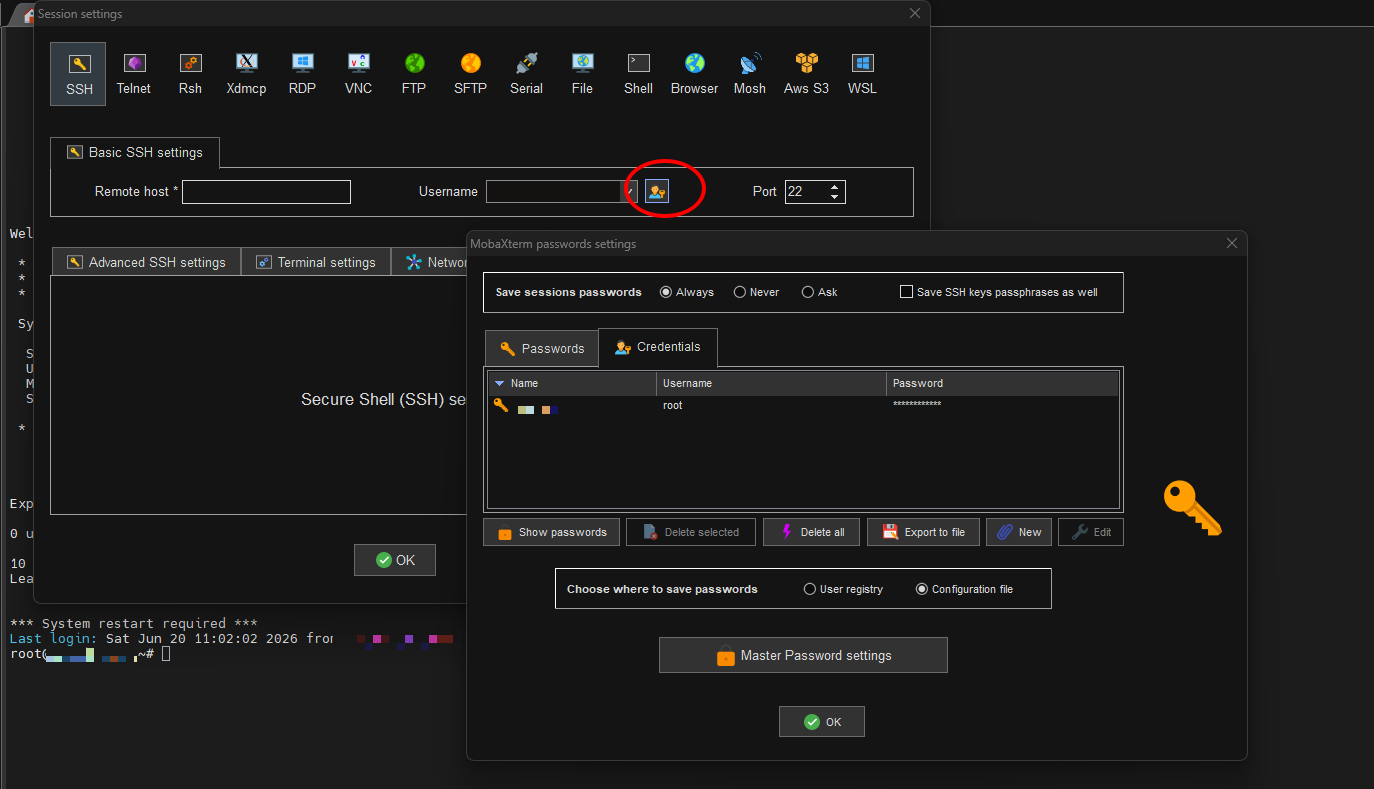
Click the person icon next to the Username field to open Password Settings
- Click New (blue pen icon) → enter
root/ your VPS password → OK.
🗡️ Weapon #2: Enable SWAP - Prevent Silent Crashes When n8n is Overloaded
When AI workflows process large amounts of data, n8n can eat up all your RAM. Linux has an OOM Killer that will… kill n8n to protect the system! SWAP (virtual RAM) is your lifesaver:
# Create a 2GB swap file, set permissions, activate, and write to fstab
sudo fallocate -l 2G /swapfile && \
  sudo chmod 600 /swapfile && \
  sudo mkswap /swapfile && \
  sudo swapon /swapfile && \
  echo '/swapfile none swap sw 0 0' | sudo tee -a /etc/fstab
Detailed explanation:
| Command | Purpose |
|---|---|
fallocate -l 2G | Create an empty 2GB file - faster than using dd. |
chmod 600 | Only root can read/write - security measure. |
mkswap | Format the file as a swap partition. |
swapon | Activate swap immediately. |
tee -a /etc/fstab | Write to fstab so swap auto-activates on every reboot. |
Verify: run free -h - if you see Swap: 2.0Gi, it worked.
Also, set the timezone so Cron/Schedule nodes in n8n run at the correct time:
sudo timedatectl set-timezone Asia/Ho_Chi_MinhVerify: run date - should show +07.
🗡️ Weapon #3: Limit Docker Logs - Prevent Hidden Disk Full Errors
By default, Docker keeps logs indefinitely. After 3 months, log files can bloat to 10-20GB and cripple your disk.
Solution: Remove the old container and re-run with log limits:
# Remove old container (workflow data is safe in the volume)
docker rm -f n8n_app

# Re-run with 10MB per log file, max 3 files
docker run -d \
  --name n8n_app \
  --restart always \
  -p 5678:5678 \
  --log-driver json-file \
  --log-opt max-size=10m \
  --log-opt max-file=3 \
  -v n8n_data:/home/node/.n8n \
n8nio/n8n:latestImportant log parameters:
| Parameter | Value | Meaning |
|---|---|---|
--log-driver json-file | json-file | Docker’s default log format. |
--log-opt max-size=10m | 10m | Each log file maxes out at 10MB before rolling. |
--log-opt max-file=3 | 3 | Keep only the 3 most recent log files. |
Verify: docker inspect n8n_app | grep -A 5 LogConfig
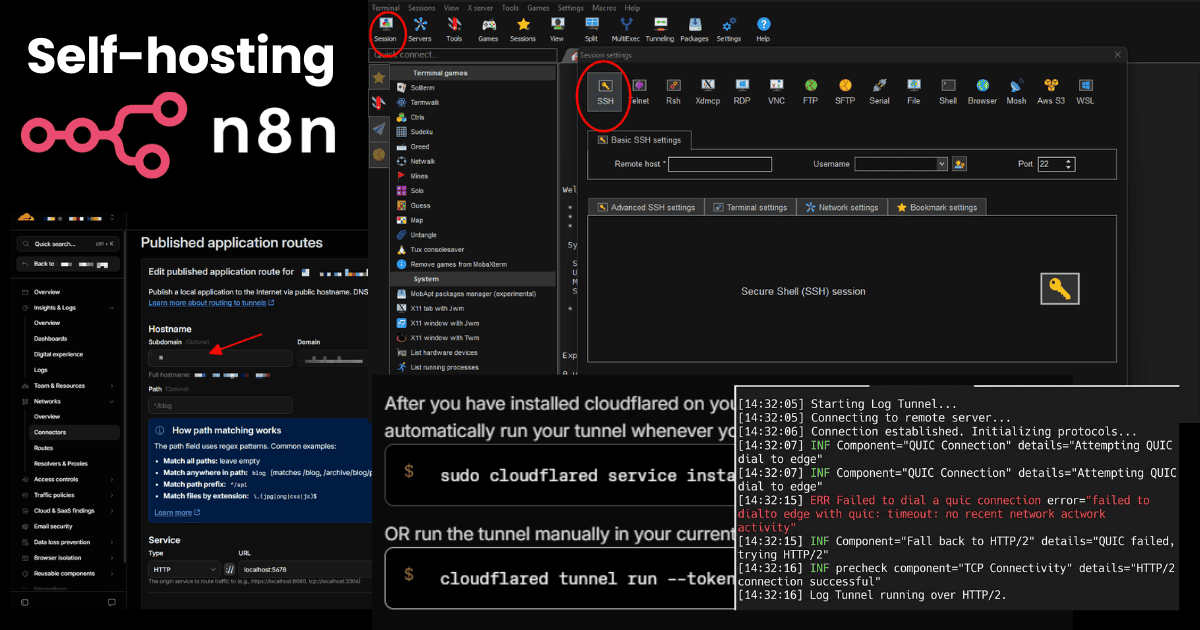
🗡️ Weapon #4: Fix 502 Bad Gateway & Error 1033 (Caused by ISP UDP Throttling)
Symptoms
You visit https://n8n.your-domain.com and see:
- 502 Bad Gateway (Host Error) from Cloudflare — or
- Error 1033: Argo Tunnel error
But the VPS still responds to ping, and SSH works fine.
Diagnosis
Check the Tunnel logs:
docker logs cloudflare_tunnel --tail 20The critical error line:
ERR Failed to dial a quic connection error="failed to dial to edge with quic: timeout: no recent network activity"
INF precheck component="TCP Connectivity" details="HTTP/2 connection successful"
Root Cause
By default, Cloudflare Tunnel uses the QUIC protocol (running on UDP ports) to connect. However, many ISPs throttle or block UDP ports going internationally. Result: the Tunnel times out constantly, while the TCP path works perfectly.
4-Step Fix Process
Step 1: Delete the old Tunnel - clean up Connectors
Go to Cloudflare Zero Trust → Networks → Tunnels:
- Click the failing Tunnel → the 3 dots → Delete tunnel.
Step 2: Create a new Tunnel & Copy the Token
- Click Create a tunnel → give it a new name → select Docker.
- Copy the long token string
eyJh...after--token.
Step 3: Delete the old DNS record
Open a new tab → go to Cloudflare Dashboard → DNS:
- Find the CNAME record named
n8n(from the old Tunnel) → Delete.
Step 4: Run the new Tunnel - force TCP (HTTP/2)
# Remove the old tunnel container
docker rm -f cloudflare_tunnel

# Run the new tunnel with --network=host and force http2 protocol
docker run -d \
  --name cloudflare_tunnel \
  --network=host \
  --restart always \
  cloudflare/cloudflared:latest \
  tunnel --protocol http2 run --token <YOUR_NEW_TOKEN>
What changed:
| Parameter | First setup (Part 1) | This fix | Why? |
|---|---|---|---|
--network=host | ❌ Not used | ✅ Used | Tunnel shares the VPS network stack, improving connection speed. |
--protocol http2 | ❌ Not used (defaults to QUIC) | ✅ Used | Forces Tunnel to use TCP instead of UDP — avoids ISP throttling. |
--network=host, the Tunnel cannot resolve the container name n8n_app. You MUST update the URL in Cloudflare:
Go to Tunnel → **Public Hostname** → **Edit** → Change the URL from
n8n_app:5678 to localhost:5678 (or 127.0.0.1:5678).
Verify with the logs:
docker logs cloudflare_tunnel --tail 10Expected output:
SUMMARY: Environment ready with degraded transport. cloudflared will proceed using 'http2'.After that, the browser should work normally.
🗡️ Weapon #5: Auto-Cleanup Script - Sunday Cronjob
Ubuntu and Docker systems running for a long time accumulate:
- apt cache files.
- Unnecessary update packages.
- Docker dangling images — untagged images taking up GB.
Solution: Set up a crontab to auto-clean every Sunday at 00:00.
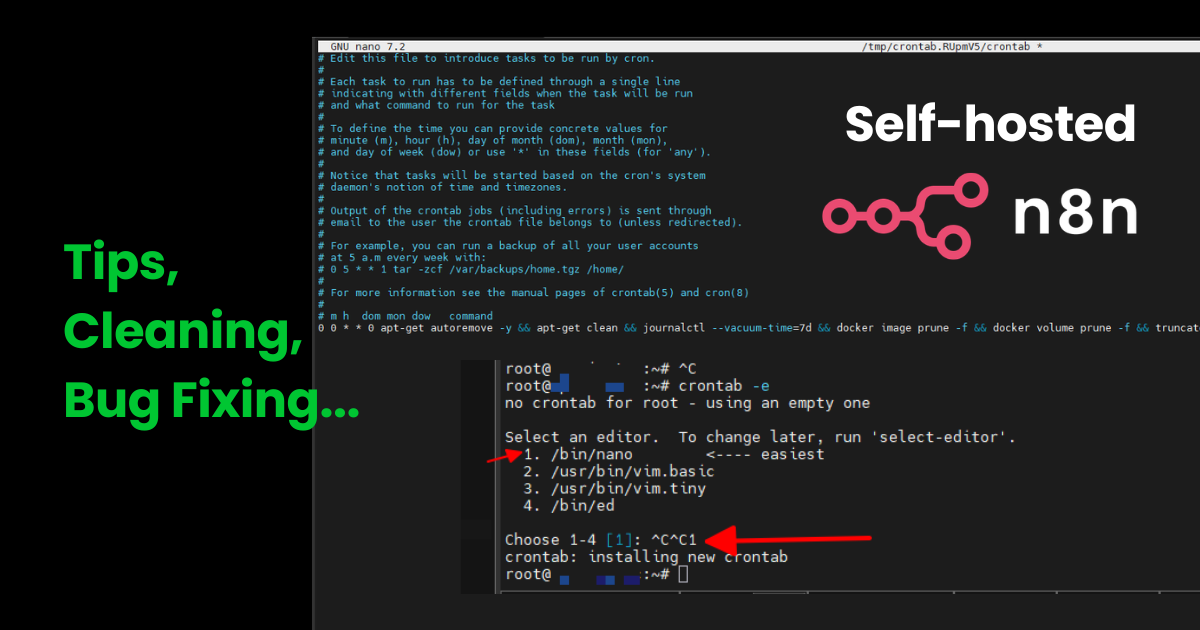
Open crontab:
crontab -e1 to select Nano (easiest to use).
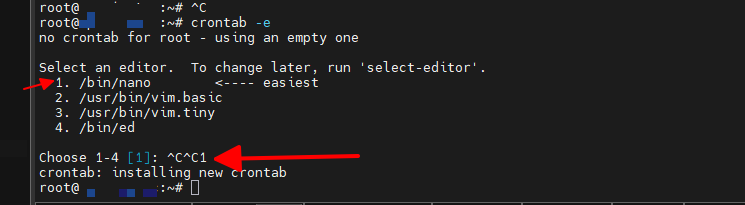
Type 1 to select 1. /bin/nano
Scroll to the bottom of the file, paste this exact line:
0 0 * * 0 apt-get autoremove -y && apt-get clean && journalctl --vacuum-time=7d && docker image prune -f && docker volume prune -f && truncate -s 0 /var/lib/docker/containers/*/*-json.log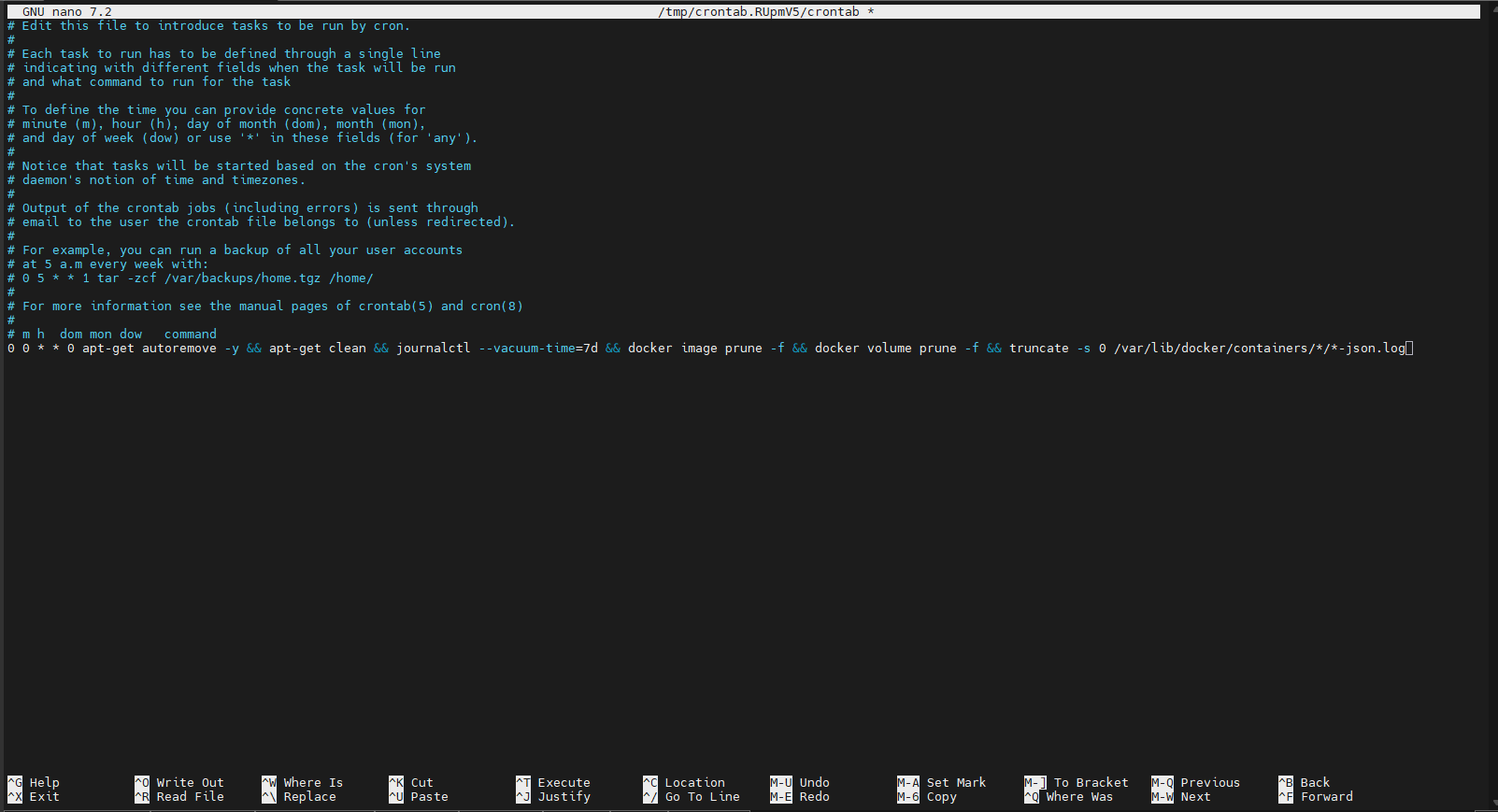
crontab -e screen with the weekly cleanup command — press Ctrl+O → Enter to save, Ctrl+X to exit
Press Ctrl + O → Enter to save → Ctrl + X to exit.
Crontab breakdown:
| Component | Meaning |
|---|---|
0 0 * * 0 | Run at 00:00, every Sunday (0 = Sunday). |
apt-get autoremove -y | Remove packages that are no longer needed. |
apt-get clean | Delete .deb cache files in /var/cache/apt/archives/. |
docker system prune -f | Remove all dangling images, unused containers, and networks. |
truncate -s 0 /var/lib/docker/containers/*/*-json.log | This “trims” the text log file size (where lines like “Node X executed successfully” are stored) down to 0 to free up disk space, without deleting the log file or container configuration. |
Verify the crontab was saved:
crontab -lYou should see the line 0 0 * * 0 apt-get autoremove... displayed.
Standard crontab field breakdown:
0: Minute 00: Hour 0 (Midnight)*: Any day of the month*: Any month0: Sunday (0 or 7 both mean Sunday)
👉 Every Saturday night at midnight, rolling into Sunday morning, the VPS will quietly trigger this command chain automatically. You don’t need to SSH in manually or reload n8n — everything happens automatically and smoothly. Your system will always be periodically cleaned to run smoothly and reliably.
Part 3: Troubleshooting & Best Practices
3.1 Quick Error Reference Table
| Error | Cause | Fix command |
|---|---|---|
| 502 Bad Gateway | Cloudflare Tunnel timeout due to QUIC/UDP | Delete old tunnel, re-run with --protocol http2 |
| Error 1033 | Tunnel uses network=host but URL points to container name | Change Public Hostname URL to localhost:5678 |
| n8n won’t start | Port 5678 in use or volume error | docker rm -f n8n_app then re-run the start command |
| Workflows get slower over time | RAM exhaustion due to missing SWAP | Check free -h, add SWAP if Swap = 0 |
| Cannot SSH into VPS | OOM Killer killed SSH when RAM ran out | Reboot VPS from web hosting, create SWAP immediately |
3.2 Quick Health Check Script
Run one command to check the entire system:
echo "=== DOCKER ===" && docker ps -a --format "table {{.Names}}\t{{.Status}}\t{{.Ports}}" && echo "=== DISK ===" && df -h / && echo "=== RAM ===" && free -h && echo "=== SWAP ===" && swapon --show && echo "=== TIME ===" && date && echo "=== CRON ===" && crontab -lIf you see containers Up (not Exited), disk < 80%, swap > 0, and the crontab has the cleanup command — your system is healthy.
3.3 Best Practices
🔒 Security
- Do not store Cloudflare tokens in a text file on the VPS — only use via Docker run command.
- Change your VPS password regularly — especially if using password-based login (not SSH keys).
- Restrict SSH IP:
ufw allow from YOUR_IP to any port 22— only allow your home/office IP to SSH in.
⚡ Performance
- Always enable SWAP — 2GB is the minimum for a 1-2GB RAM VPS.
- Limit Docker logs from day one — don’t wait until the disk is full.
- Delete unused workflows — many inactive workflows still consume RAM when n8n loads.
🏗️ Architecture
- Use Docker volumes (not bind mounts) — easier to backup and migrate.
- Keep a log of past errors — when the same issue happens again, you can look it up faster.
- Upgrade Docker images by specific tag — don’t use
:latestin production if you don’t want surprises.
Conclusion & Core Lessons
With just a few decisive actions, your n8n system will:
- ✅ Run stably — no silent crashes from RAM or log overflow.
- ✅ Load quickly — no more 502/1033 errors from ISP UDP throttling.
- ✅ Auto-clean — every Sunday, the VPS cleans itself up.
- ✅ Super fast VPS access — double-click via MobaXterm, no password typing.
Core lessons from real-world experience:
- Don’t waste time looking for a protocol toggle in the Cloudflare Web UI — force it from the Docker command on the VPS (
--protocol http2).- When using
--network=hostfor the Tunnel to boost speed, always point the target URL tolocalhost:5678— never to the container name.- Limit Docker logs, enable SWAP, and set up a crontab cleanup — these 3 configurations are mandatory. Set them up right after installing n8n, don’t wait until something breaks.
📖 Related articles: